Power of the Nature

During my language stay at ELC in York UK we had to write a small essay on a specified topic once or twice a week. As we only had 15 to 20 minutes to write each time, the texts are rather short. As one of my texts had been specially appreciated by my teacher and classmates, I would like to publish it here. Additionally it turns out to be very adapted to the thunderstorm of last week.
The topic given by the teacher was my favourite place:

Instead of choosing a single place, I would like to choose mountains in general, especially the mountains in my home-area. Although I have not been up to the mountains for a while due to my problems with my knee, I really like them. When I am away for a while I miss them.
There are several reasons why I love the surrounding mountains. One of them is simply that they are nice to look at with their rough shapes and the green, soft forests around.
A deeper, more psychological reason is that they support me by giving me a feeling of safety. There are always stable and very solid mountains around me, offering me some stability. As a consequence of the narrow mountains, the area is very easy to grasp in all directions. You do not get lost in a wide plain but are constantly supported and kept on the ground by the powerful mountains.
The mountains are kind of an anchor for many people, not only due to their effects described above but also because they demonstrate, from time to time in a violent way, that the nature is more powerful than the human beings and that human beings are very small when facing the nature’s force.
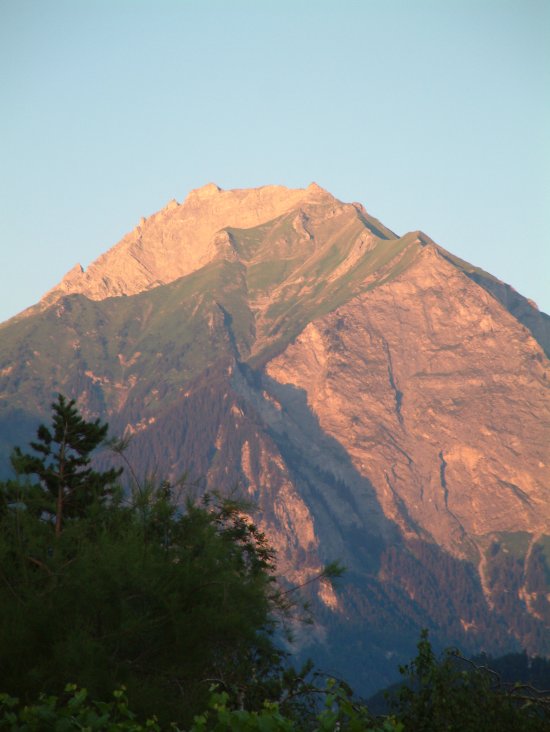
Falknis
This picture of the mountain called Falknis in the East has been taken by my grandfather from his garden, about 100 meters from my parents‘ house.

View from the Gonzen
View from the mountain Gonzen in the North. The villages down in the plain are Sargans (on the left) and Mels.
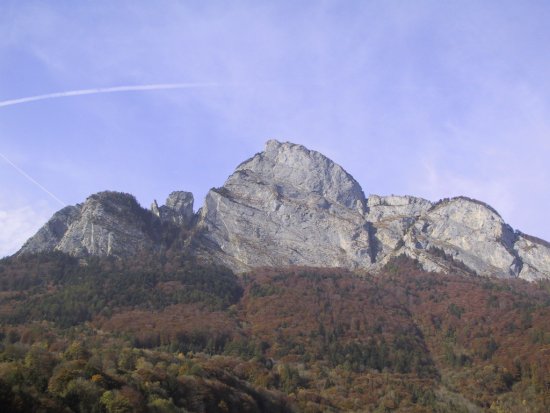
Gonzen
And finally the Gonzen seen from my bedroom.

How to Scan at UniFR

Students and collaborators at the University of Fribourg have access to a very fast and high quality scanner: the printer and photo coyp machine in the A100 hall at Pérolles II. Simply push the button „Scan“, then choose the „scan to file“ option (in the middle) and follow the instructions (choose pdf or tiff, set resolution, color etc). The scans are then stored in a folder that can be accessed using samba.

To access the scans, a samba client is necessary. Under Linux kbear or the command line interface smbclient can be used. For the command line interface, type the following command (replace by your username):

smbclient //admpr07/FILE_SHARE -U -W UNIFR

After, the same commands as in the terminal ftp client can be used, i.e. get to download a file, mget to download multiple files (e.g. mget *.pdf), cd to navigate and del to remove a file (which is recommended at the end, as everybody has access to the folder).

If smbclient is not installed, you will first have to install it. Under ubuntu this can be done by typing sudo apt-get install smbclient.

If you want to access the files using your own machine or from at home, you will have to connect using VPN.

LaTeX-Beamer with Bibliography and Newblock

Tomorrow morning I will give a presentation on publish/subscribe (read the abstract and the invitation – you are welcome to drop in!). To prepare the presentation I used the LaTeX Beamer Class. The package is great, but the command \newblock which I use in the bibliography does not work and constantly produces the error http://latex-beamer.sourceforge.net/. This is due to the fact that the \newblock is not defined in the Beamer Class. The solution is to define it yourself by adding the following line of code after the \begin{document} command:
\def\newblock{\hskip .11em plus .33em minus .07em}

With this simple line everything is fine and the bibliography works.

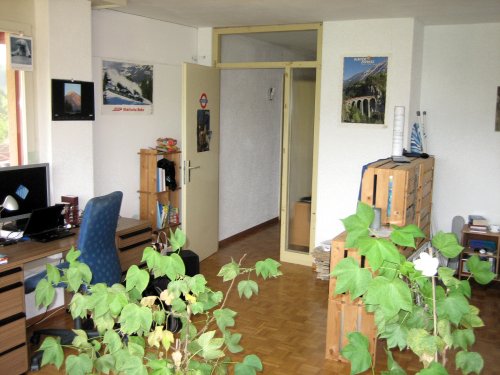
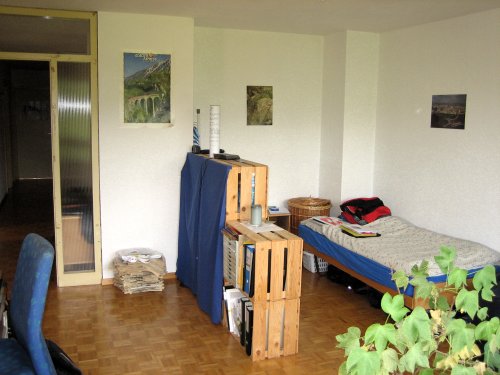
Zimmer zu vergeben, chambre à louer

Das Ende meines Studiums in Fribourg naht und mein Zimmer wird in unserer Nichtraucher-4er-WG wird Ende Juli frei. Die Wohnung ist im ersten Stock (mit Lift ;-), hell, mit zwei Badezimmern, Küche, Stube, Balkon. Sehr ruhige Lage, nahe Wald/Fluss/Finnenbahn. Sonst nur Familien im Quartier. Mit Velo ca 10min an Uni Pérolles (Miséricorde ca. 15Min). 10-15 Fussminuten bis zur Bushaltestelle (Coop Marly, weniger als 5min mit Velo). 438.-/Monat Nebenkosten inbegriffen (inkl. Waschen & Tumbler im Haus). Möglichkeit, ADSL (wireless) für nur ca. 10.-/Monat zu haben.
Das Zimmer ist sehr gross (knapp 22m²), sehr hell (vorne Fensterfront, seitlich ein Fenster), mit Parkettboden.
Möglichkeit, den Pult/Schreibtisch zu „erben“.

Kontakt: wg [at] zindel.org oder Natel Niklaus: 079 475 76 07 oder Natel Dominik: 079 207 00 65

****************************************

La fin de mes études à Fribourg approchant, ma chambre dans notre colloc à 4 (non-fumeurs) se libère fin juillet. L’appartement est ensoleillé, deux salles de bains, cuisine, salon, balcon. Situation très calme, proche de la forêt/Gérine/piste finlandaise. Pas d’autres étudiants dans le quartier. 10min jusqu’à l’uni Pérolles à vélo (15min à Miséricorde). 10-15min à pieds jusqu’à l’arrêt de bus (Coop Marly, moins de 5min à vélo). 438.-/mois, charges comprises (y compris linge/sèche-linge). Possibilité d’avoir ADSL (réseau sans fil) pour 10.-/mois environs.
La chambre est très lumineuse (façade de fenêtres) et très grande (22m² env.), avec parquet.
Possibilité « d’hériter » du bureau.

Contact: wg [at] zindel.org ou Natel Niklaus: 079 475 76 07 ou Natel Dominik 079 207 00 65

Zimmer

Chambre

Chambre

Zimmer

Bedroom

Vue/Aussicht

Comfortable Wireless Networking with Linux

Logo NetworkManagerUntil a few minutes ago I was not really happy with the current configuration for (wireless) networking on my notebook. When I wanted to change to another (wireless) network (e.g. when I was not at home), I had to go to the network settings and change the network there. If I went to a new place, I had to use iwlist scanning to find out which networks were available and then manually enter the essid to the form. Connecting to the network was then rather slow, sometimes it did not work (always switched back to another network that was not available at the current place) and I had to reboot. Thanks to Clem who told me about the NetworkManager this is now over. Originally it is a gnome-tool but it works perfectly on my Ubuntu with XFCE.

I installed NetworkManager by the command sudo apt-get install network-manager, commented out (with #) all lines except those with lo in /etc/network/interfaces and rebooted. The first time I had to start the NetworkManager using nm-applet, since then a small applet has been in my xfce-panel. Similar to windows I can click on it to display available networks. By clicking on an entry, I can connect to the corresponding network (and enter the network key).

Switching from Gaim to Pidgin

PidginIt has now been for a while that Gaim has changed its name to Pidgin (no, it is not pigeon…) due to a lawsuit with AOL and published the version 2 of this instant messenger. Now they have released 2.0.1, so I decided to install this new version.

My Ubuntu did not automatically install the new version. Unfortunately I could not find a .deb-package for Pidgin, so I had to compile Pidgin myself. Before doing that I made a backup of my folder ~/.gaim containing my preferences.

First, I had to download the source and then unpack the .tar.bz2-file using the command tar -xjf pidgin-2.0.1.tar.bz2. After a cd pidgin-2.0.1, I executed the first of the classic three commands to compile a program: ./configure. Unfortunately I got the message You must have libxml2 >= 2.6.0 development headers installed to build. so that I had to install sudo apt-get install libxml2-dev before again executing ./configure. This time everything went well and I was told configure complete, now type ‚make‘. Obviously I followed this advise and typed make which busied my aging computer for a couple of minutes. To finalize the installation I had to type make install. After that, everything was ok.
I can now start Pidgin by typing pidgin in the terminal or by using the entry in the menu (Network -> Pidgin Instant Messenger).

Pidgin does not seem to have changed a lot compared to the beta version of Gaim 2 that I had installed before (however it has changed a lot compared to the older versions). The design and icons are different and more modern, but the functionalities are about the same. Unfortunately it does not support video or voice chats, but personally I prefer writing over talking, so this missing feature does not really disturb me. What I really appreciate is that Pidgin supports no less than 15 different protocols. As an example, I use it for my ICQ, MSN and GoogleTalk accounts.

Continue reading «Switching from Gaim to Pidgin»

How to easily sort out bad pictures

If you take many pictures from events or sport matches you certainly know the problem of separating the good pictures from the trash. Most image manipulation programs like are too heavy to use them for sorting the pictures. However, there exists a very light-weighted tool for Linux (and Solaris and FreeBSD): qiv, Quick Image Viewer. Although the download has only about 100KB (provided that gtk+/gdk and Imlib are installed), it offers an incredible number of functions.

Under Ubuntu the installation of qiv is very easy sudo apt-get install qiv. After the installation, qiv can be started using the command qiv where path can be a file or a folder whose content should be displayed. In addition to this pure paths, operators like the * are also possible, for exampleqiv *.jpg opens all .jpg-files in the current folder.

When qiv is the current window and displays an image, many commands (use man qiv for an exhaustive list) can be used. Actually I use only a few of them. The most frequently used commands are:

  • space bar: display next picture
  • backspace: display previous picture
  • Page Up: go five pictures forward
  • Page Down: go five pictures backward
  • d: delete the currently displayed image
  • u: undelete the previously deleted image
  • q: close qiv

When you delete an image it is actually not deleted but moved to a folder .qiv-trash (in the folder of the pictures), so it can be recovered later. At the end of the sorting, it is quite wise to delete this folder using rm -rf .qiv-trash to save some space.

Using qiv I have managed to considerably speed up the tedious task of sorting the images before editing and publishing the good ones.

Zattoo for Linux

ZattooFinally Zattoo is available for Linux! Today I’ve got a newsletter from Zattoo telling me that Zattoo can now be downloaded for Linux. With Zattoo 43 TV-channels are available for free. You simply have to register (which means: indicate the email-address and choose a password), download and install the software (for Windows, Mac and Linux), start it, login and choose the channel. It is very easy to use and the quality is surprisingly high. There are more channels than we get with Cablecom and it is free. The software is available in English, Deutsch, Dansk et Français (la versione italiana e la versiun romontscha mauncan aunc…).

I immediately downloaded the .deb-package of Zattoo (rpm’s are also available) for Linux and installed it on my Ubuntu Edgy Eft. The installation was very easy, however it did not work on the first try: When executing the command sudo dpkg -i zattoo-2.2.8.5561-i386.deb the installation failed with the message Package libgtkglext1 is not installed. I therefore installed this missing package with sudo apt-get install libgtkglext1, then re-executed the command sudo dpkg -i zattoo-2.2.8.5561-i386.deb and after a few seconds everything was fine.
Using the terminal I could start Zattoo with the command zattoo_player & (it could also be started using the menu Multimedia and then Zattoo player, but personally I prefer the terminal), log in and choose the channel and enjoy the new TV. It works!

Tables in LaTeX

Have you ever created any tables in LaTeX? In my opinion tables are definitely one (the only one) of the weak points of this wonderful typesetting system. With LaTeX most common tasks (write a «normal» report, standard formatting etc) are extremely easy, but creating tables with seems to be an occasion to tear one’s hair. Really? No!
Edit table in OOo-CalcIndeed there is a wonderful trick (thanks to Jutta for this hint) to easily add wonderful tables to your document: simply create it as a spreadsheet in the spreadsheet program of your favourite office suite (I recommend OpenOffice). Do not format the table, this is pure waste of time as all formatting will be lost later.
After you are done, save the table as Text CSV (.csv). Instead of saving the file with the standard CSV options, modify these options as follows: set the field delimiter to & and remove the text delimiter. This creates a .csv-file, in our example it is
expenses&2006&2007
replacement of dishes&300$&14$
fines for speeding&3500$&0$
fines for dodging paying the fare in trains&0$&600$
bail to be released after drug tracking&400$&1400$

Open this .csv-file in a text editor and copy its content to your favourite LaTeX editor (e.g. Kile). Now you simply have to modify this code to change it into a correct LaTeX table: add \\ at the end of each line of the table, add a \hline where you want a horizontal line, escape special characters (e.g. in our example the $ sign) with a backslash \ and add (i.e. copy it from another document) the surrounding code like \begin{tabular}:
\begin{table}
\begin{center}
\begin{tabular}{|l|r|r|}
\hline
expenses&2006&2007\\
\hline
replacement of dishes&300\$&14\$ \\
\hline
fines for speeding&3500\$&0\$ \\
\hline
fines for dodging paying the fare in trains&0\$&600\$ \\
\hline
bail to be released after drug tracking&400\$&1400\$ \\
\hline
\end{tabular}
\label{tab:expenses}
\caption{Personal Expenses in 2006 and 2007.}
\end{center}
\end{table}

Table Created with LaTeXEven though the above code still seems to be complicated (it isn’t as you will realise when taking a closer look at it), this trick really simplifies the task of creating a table in LaTeX. When using it, the creation of tables in LaTeX does not become the easiest part of LaTeX but it is no more tedious and the countless advantages of LaTeX over Word make editing a report fare more efficient with LaTeX despite the rather cumbersome creation of tables.

I will talk about the advantages of LaTeX in a later post, so just look back later (or better: subscribe to my RSS-Feed).

New Thunderbird in Action

ThunderbirdThunderbird 2.0, the new major release of the free opensource email-client has now been out for a couple of weeks. Yesterday I finally decided to upgrade to this new version. Already after a few hours I can say that the new release definitely has some advantages over the old one and that Thunderbird has now become even better.

Let’s first talk about installation of the new version of Thunderbird. Actually the installation under Linux was extremely easy: I simply replaced the Thunderbird-folder (i.e. the folder in my home directory where I have installed Thunderbird – the mail data is stored in another folder, namely ~/.thunderbird) with the untared files of the new version of Thunderbird. I then started Thunderbird which automatically updated all installed extensions (now called add-ons) and the installation was done!

In my opinion, Thunderbird 2.0 has some strong advantages over its predecessors, and obviously even more advantages over the rivals. Some advantages are:

  • New, better interface.
  • The search tool which was already great before has become even better. It is now really fast to find a message by searching after a keyword. Additionally, Thunderbird now dynamically updates the search results, i.e. the result list is permanently updated while typing the key word.
  • The notification has been considerably improved: In older versions of Thunderbird there was a small window popping up in the bottom right corner saying that there was a new message. However, this notification did not work under Linux, so I just heard the sound and then had to switch to Thunderbird to see whether the newly arrived message was worth reading. Now this notification also works under Linux and displays useful information: sender, subject and the beginning of the message. Thus I can decide about the appropriate treatment of the new message without having to switch to Thunderbird.
  • The Spam filter is not really an improvement over older versions of Thunderbird as it was already integrated. However, this adaptive filter is an important reason for me why I use Thunderbird. Every day it filters out between 100 and 200 Spam messages. False negatives (i.e. it does not filter a Spam message) are rare, false positives (i.e. a message is filtered although it should not) hardly ever happen.
  • Dictionaries can be installed as add-ons. When editing messages, these are automatically corrected. The language can be chosen in a small dropdown-menu, without having to go to a preferences menu. Especially for people like me who often write emails in different languages, this feature is extremely useful.

Mail View Toolbar Button For me, the new release of Thunderbird has only a single, small disadvantage over its predecessor: the mail view toolbar button has disappeared and has to to be activated manually (go View->Toolbars->Customise and drag it to your preferred place). However it can not be placed where it used to be in older versions. I have now placed it in the top menu bar, just on the right of the Help-menu entry. I will first have to get used to that.
The main problem here is that this button does not really work as I expect it: when changing the selection this does not have an immediate effect on the list of messages displayed. When I change it from «Unread» to «All», there are still only the messages displayed that are unread. The only effect it seems to have is that the search also finds messages that are read. I will try to find out how I can change this strange behaviour…

These are only some of the good points of Thunderbird, the release notes give you more reasons to immediately uninstall Outlook to replace it with Thunderbird.